Creating and Updating Passwords in Bitwarden
This guide will detail the steps to successfully change your password using the Bitwarden browser extension.
Changing an Existing Password
- Navigate to the website where you'd like to change your password.
- Log-in using your existing credentials and navigate to the account settings. Unfortunately, this is different on every website. Once you've reached the account settings, navigate to the password heading to modify your password.
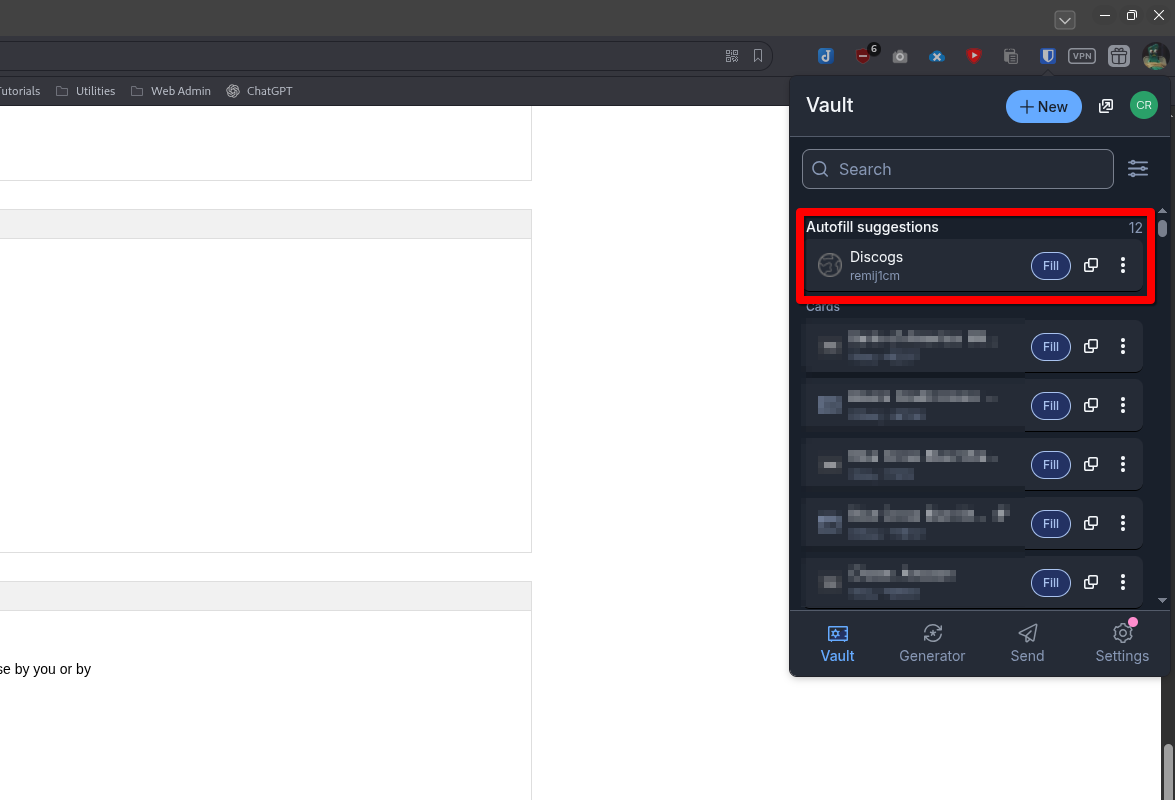
- Click the BitWarden extension icon. Check that an entry exists:
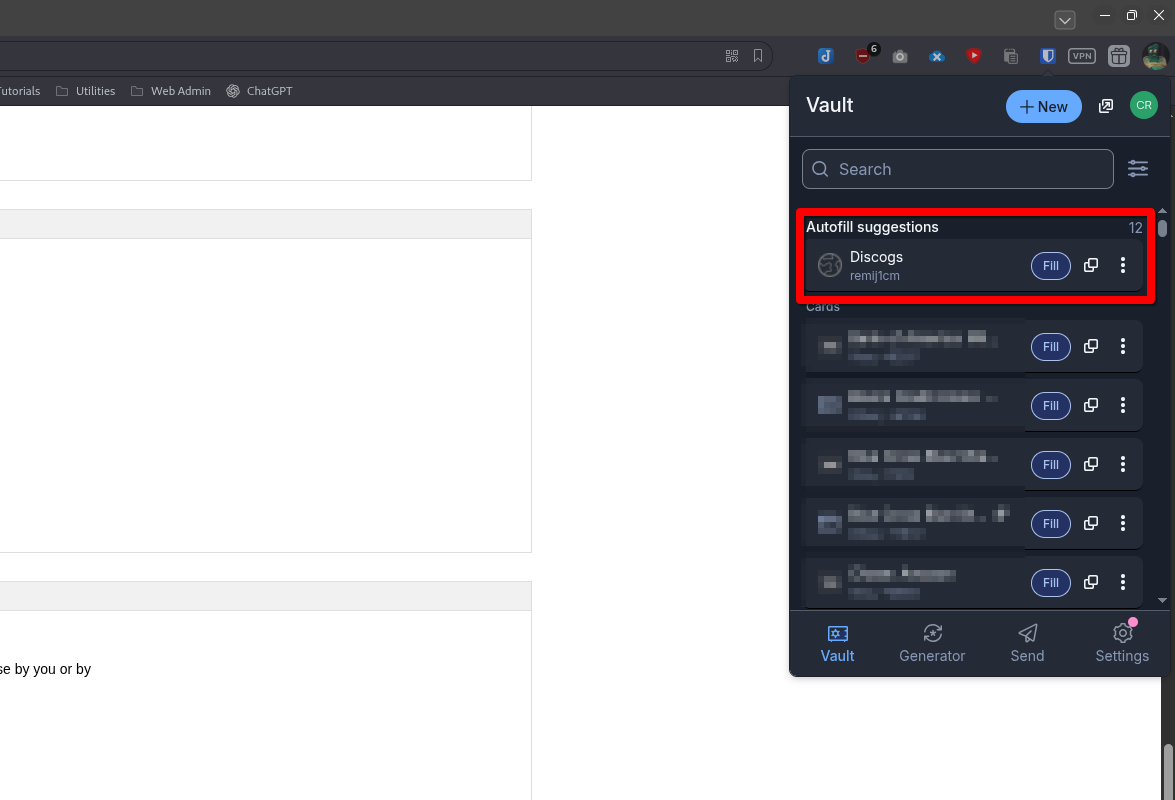
If no entry is found, jump to "Creating a New Password."
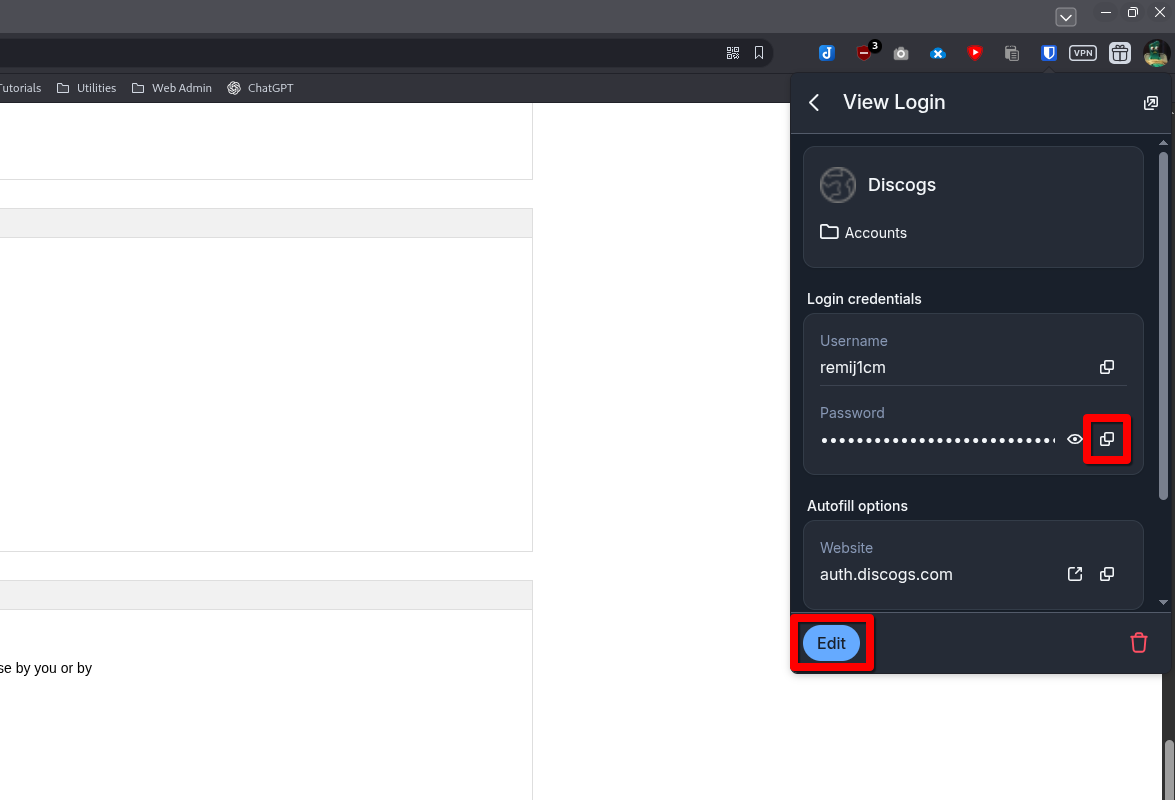
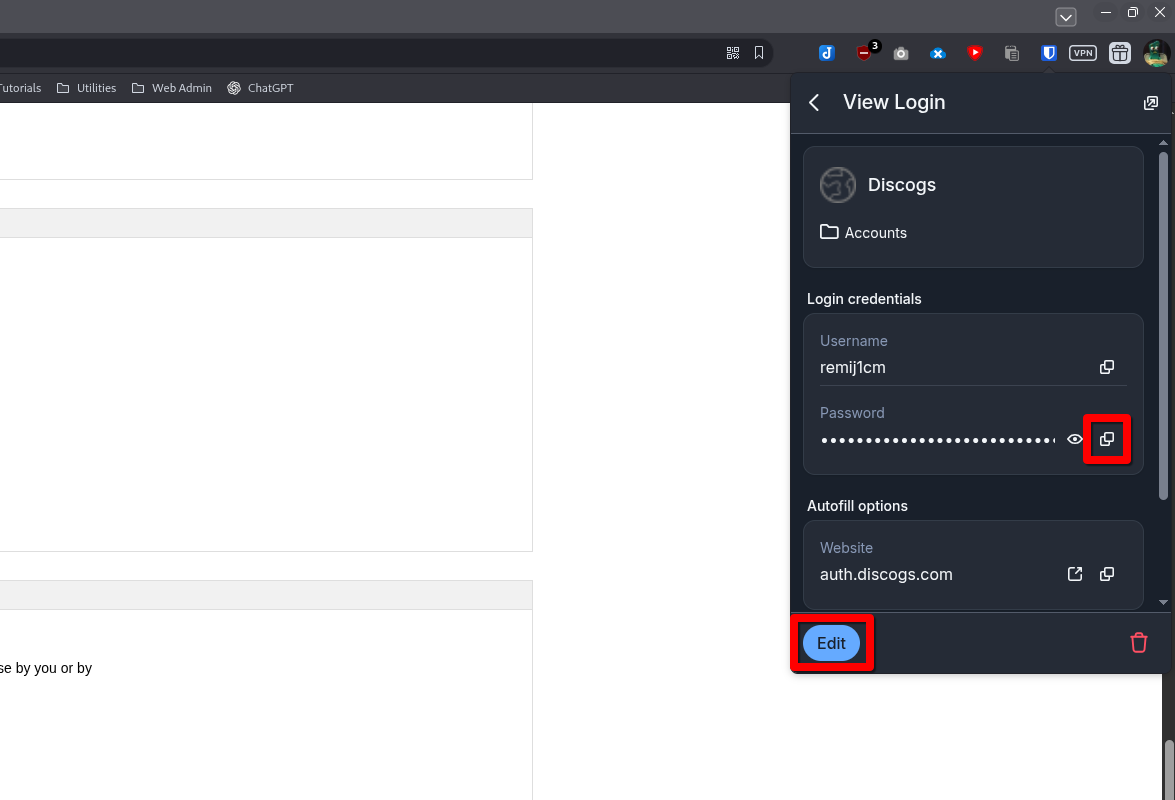
- Click the entry to view the login. Sometimes a web site will require the user to input their old password. Now is a good time to copy the old password to the clipboard. Once that's copied, press the "Edit" button:
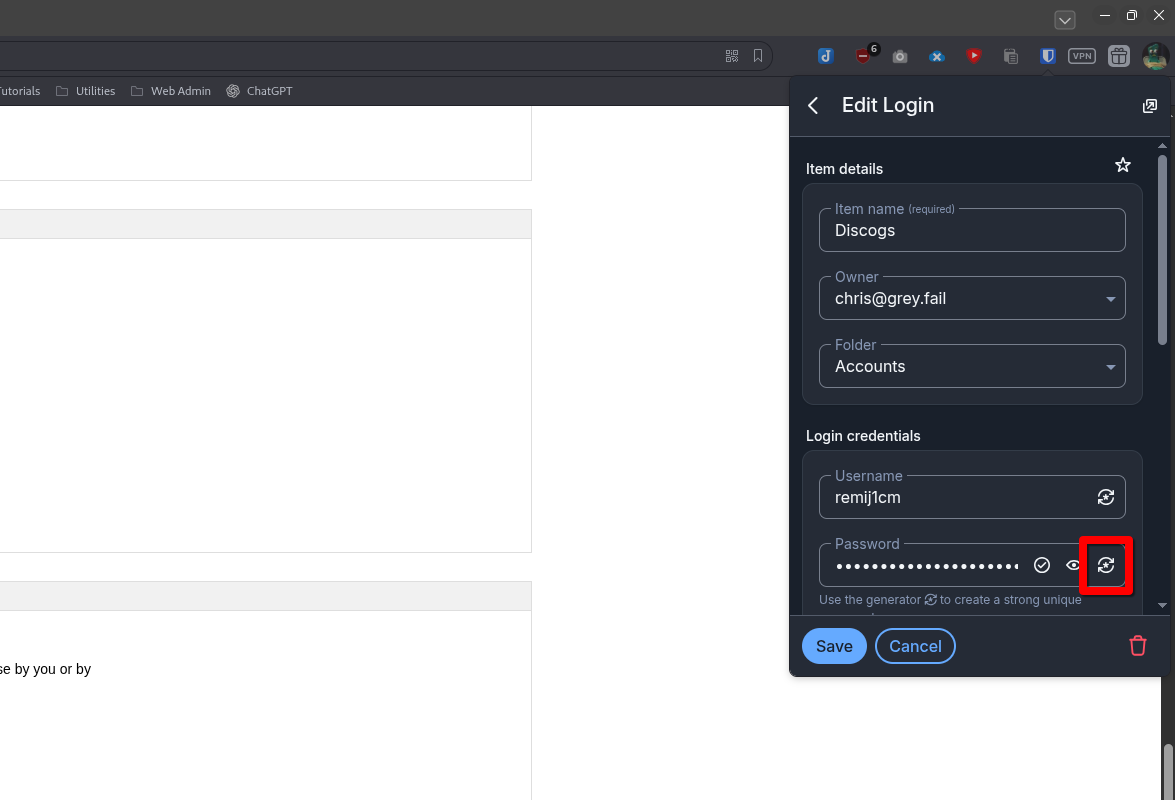
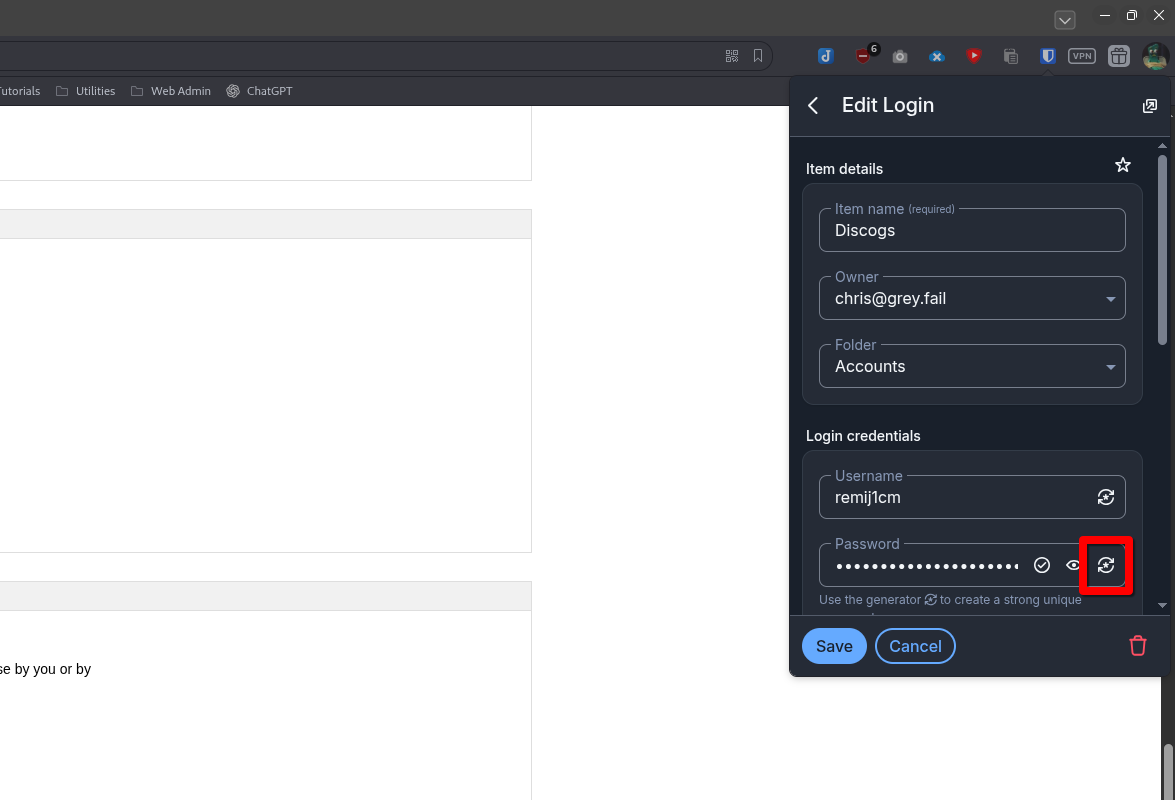
- The "Edit Login" window will appear. This is the area where we can make modifications to a BitWarden Login entry, like updating passwords, usernames, and URLs. To generate a new password, select the generator button next to the Password text box:
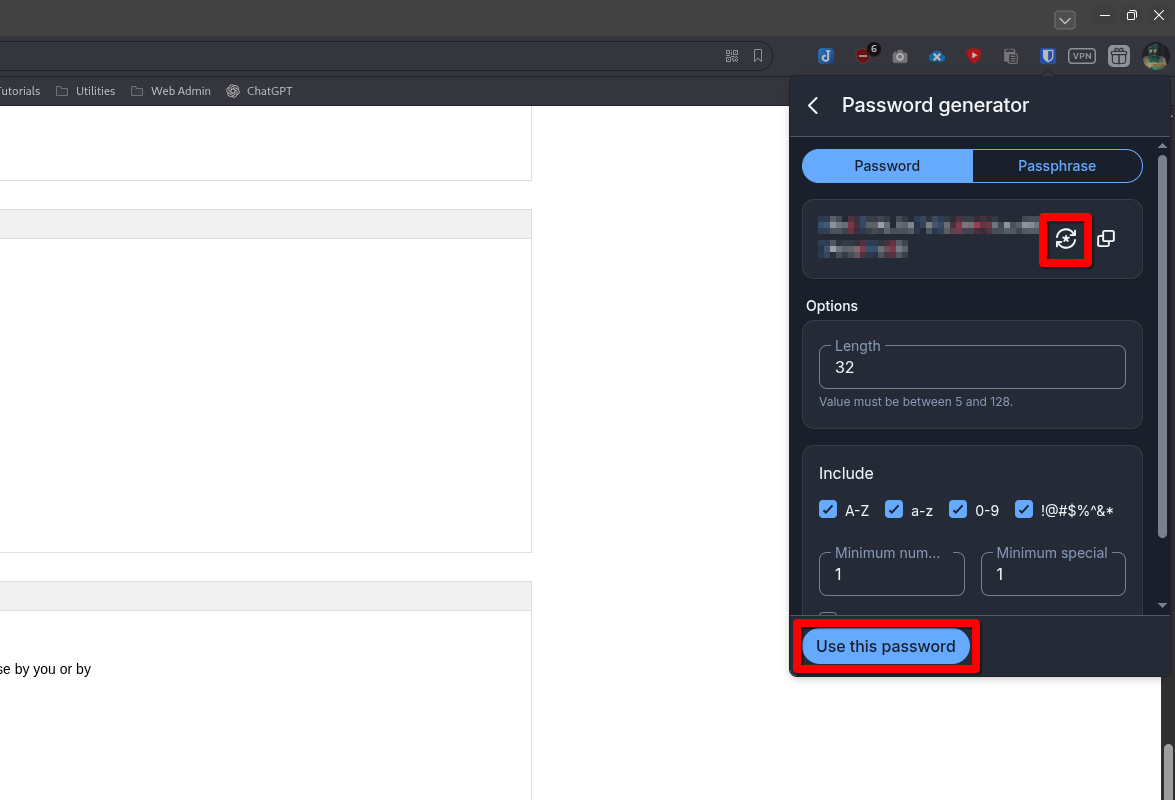
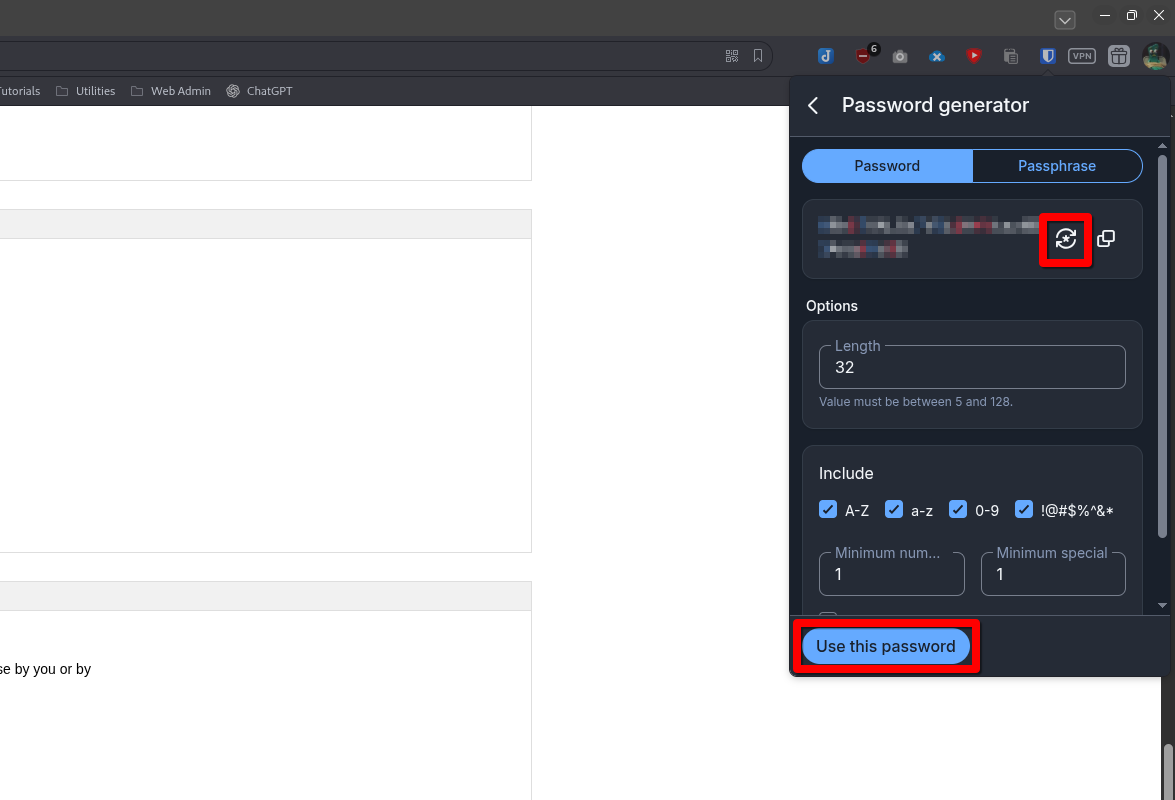
- The generator tool will appear. Here we can set the parameters of the password. This is handy if sites have password complexity rules (length, special characters, etc.). You can cycle through passwords by clicking the generator button near the top. If you like what you see, select the "Use this Password" button.
- This will update the Bitwarden entry. Hit save:
- but not the actual account information on the website.